

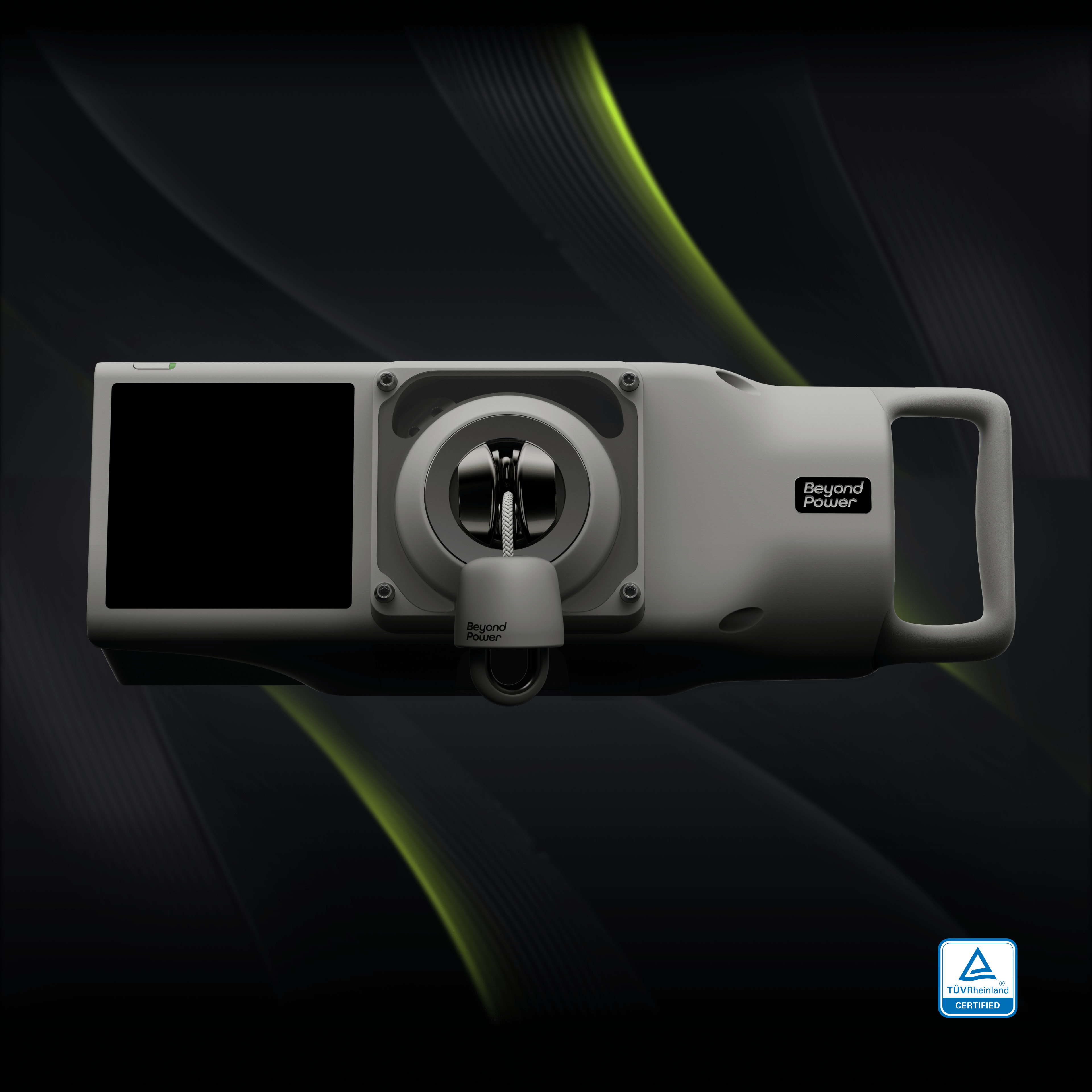


Beyond Power shipped Cortex — a command-line tool that lets you (and your AI assistant) drive a Voltra directly. It's genuinely powerful and genuinely technical. Here's what it is, what every command actually does, and how to get from zero to a controlled set without a computer-science degree.
If you're looking to leverage AI with your Voltra but don't want to set up the Cortex CLI, you don't have to. Eccentric does it for you from a normal app — no terminal, no install, and it works from your phone or a browser.
→ Planning, tracking, and optimizing workouts with AI
Beyond Power calls Cortex an "AI Agent Kit for VOLTRA." That's accurate, but it doesn't tell you much if you've never installed a developer tool before. Here's the plainer version:
Cortex is a program you run by typing commands into a terminal window. It talks to your Voltra over Bluetooth and to your Beyond+ account over the internet. Typing voltra set-weight 60 sets the load. Typing voltra load makes the cable go live. Typing voltra workout list prints your training history.
The reason it exists in that shape is the second half of its name. AI assistants that run on your computer — Claude Code, Codex, Cursor, and friends — are very good at running command-line tools. Give one of them Cortex and it can look at what you lifted, design a session, build a resistance curve, and set up the trainer for you. That's the real pitch, and it's a good one.
Two catches. The on-ramp is a terminal — so if your last encounter with a command line was never, this guide is for you.
And the phrase "run on your computer" is doing enormous work in that sentence. Claude or ChatGPT open in a browser tab can't reach Cortex. Neither can their phone apps. That's the single most common misunderstanding about this tool, and it's worth settling before you go any further.
A walkthrough of Cortex as it's documented today, in beta. I've kept the commands verbatim from Beyond Power's own docs so you can trust them — but beta software moves, so treat the official reference as the final word if something doesn't match.
- First, the honest expectations
- Step 0: Opening a terminal
- Step 1: Check the environment
- Step 2: Save your API key
- Step 3: Find and connect the trainer
- Step 4: The safety acknowledgment
- Step 5: Your first controlled set
- The other training modes
- Your training history
- Skills, updates, and the AI part
- When something goes wrong
- Or: skip the terminal entirely
First, the honest expectations
Four things worth knowing before you spend an evening on this.
It runs on a computer, not your phone. There's an installer for macOS on Apple Silicon, one for 64-bit Linux, and a PowerShell one for Windows. Intel Macs aren't supported yet. Whichever machine you use has to be near the trainer, because the connection is Bluetooth.
Your AI assistant has to run on that same computer. This is the one that surprises people, so it's worth being blunt: Cortex is a program installed on your machine, and the only way an assistant can use it is by running programs on your machine. That means a local agent with terminal access.
Claude or ChatGPT open in a browser tab can't reach Cortex. Neither can their phone apps. There is no hosted endpoint to point them at.
It's not a permissions setting you've missed or a feature that's coming next month. A web app and a phone app fundamentally cannot run a program on your laptop, and running a program on your laptop is the only interface Cortex has.
Concretely — these can drive Cortex:
- Claude Code, Codex, Cursor, or any agent running in a terminal on the machine where you installed it
- You, typing the commands yourself
And these cannot, at all, today:
- Claude in a browser tab
- ChatGPT in a browser tab
- The Claude phone app
- The ChatGPT phone app
- Any assistant running on a computer that isn't the one connected to your trainer
So the mental model isn't "my AI can now control my Voltra." It's "my AI, while running on the laptop sitting next to the trainer, can control my Voltra." That's a real and useful thing — it's just a much narrower thing than "AI Agent Kit" suggests, and it's worth knowing before you install anything.
It doesn't replace the Beyond+ app. The docs are direct about this: the CLI manages session templates, but "does not execute session training" — running an actual guided session is still the iOS app's job. Cortex controls the hardware and reads the data; it isn't a workout screen.
It's beta, and access is gated. You apply through the Beyond+ mobile app — open the latest version, find the Beyond Cortex banner, request access — then follow the in-app instructions to install it on your machine. There's no public download link.
Step 0: Opening a terminal
Skip this if you already live in one.
- Mac: press
⌘ + Space, type "Terminal", hit Enter. - Windows: press Start, type "PowerShell", hit Enter.
- Linux: you know where it is.
A window opens with a blinking cursor. Everything below gets typed there, one line at a time, pressing Enter after each. Copy only commands you understand: a terminal can change or delete files just like any other powerful tool. The Cortex commands that can put force on the cable are flagged clearly further down.
The installer drops the program at ~/.voltra/bin/voltra and adds that folder to your PATH — which is the mechanism that lets you type voltra from anywhere instead of the full path. If you hit "command not found" right after installing, that's almost always the fix: close the terminal window and open a fresh one. PATH changes only apply to new windows.
Step 1: Check the environment
This is the "is anything obviously broken" command. Run it first, and run it again any time something stops working. It diagnoses your environment — permissions, Bluetooth, the install itself — so you find out about a missing permission now rather than three commands into setting up a lift.
Step 2: Save your API key
Your API key is how Cortex proves it's you. You get it through Beyond+ during the Cortex setup flow; it's personal, and it belongs to your account.
Replace <YOUR_KEY> with the actual key — no angle brackets. Cortex validates it against Beyond Power's servers before saving. (--force skips that check, which you generally don't want.)
Confirm it took:
config show tells you a key is stored and shows it masked. whoami goes out to the server and comes back with your account — the real proof it works. It also refreshes your preferences file at ~/.voltra/user-preferences.json.
If you ever need to unlink the machine — selling a laptop, handing it to someone — that's voltra config clear-api-key.
Treat the key like a password
It's stored in a plain file in your home folder under ~/.voltra/. Anyone with that key can read your training history and control your trainer. Don't paste it into a chat, a screenshot, or a public repo.
Cloud commands such as workout, actions, session, and custom-curve accept --api-key <key> as a one-off override. Device and training commands require the saved key. Commands also offer --json to print machine-readable output instead of the pretty human version. That --json flag is the whole reason AI assistants get along with this tool.
Step 3: Find and connect the trainer
Wake the Voltra, then:
It lists nearby Voltra devices. By default it shows ones it recognizes; add --all to see everything it can hear. If nothing shows up, add --timeout-ms with a bigger number to listen longer, and check that Bluetooth is on and the trainer isn't already claimed by the phone app.
Then connect:
You can pass the device ID, the exact device name, or just the number from the scan list — voltra connect 1 works. This does a handshake, remembers the device for next time, and starts a background session that keeps the connection alive between commands.
Check on it any time:
That's your live snapshot: connected or not, battery, current mode, current load.
Step 4: The safety acknowledgment
This one is required exactly once per machine, and it's required for a reason.
Beyond Power's docs describe it as a "one-time acknowledgement required before load can apply force." Read that literally. load is the command that energizes the motor and puts real resistance on the cable. If you're holding the handle when it goes live, you'll feel it. If you're not holding the handle and the cable is extended, it retracts.
Two habits worth building on day one
- Know how to stop it before you start it.
voltra unloadkills the resistance in any mode. Have it typed and ready before you typeload. - Set the load before you energize. Configure the weight first, energize second. Never the other way around.
Step 5: Your first controlled set
Here's the weight-training flow straight out of the docs, annotated:
--unit lbs or --unit kg — pick one and be consistent, because mixing them is how you end up with a very surprising set.
One rule that trips people up: the device has to be unloaded before you can switch modes. If set-mode refuses, run unload first.
The load modifiers, in plain terms
These are the interesting part of a Voltra, and Cortex exposes all of them.
set-auto-unload is the one to set up early if you train alone. It's the difference between finishing a set and finishing a set while fumbling for a laptop.
The other training modes
Weight training is one of eight training categories Cortex exposes. The resistance modes follow the familiar shape — connect, configure, load, unload, finish-training. Rowing and skiing are different: their *-start commands begin the distance workout directly, and finish-training ends it.
A few notes on the odd ones out:
Isometric wants voltra check-cable-zero first, which verifies the cable is fully retracted at its zero position before you push against it. The docs are candid that this mode is only half-wired in the CLI today: it can start the effort, but results show up on the device and in the app, not in your terminal.
Rowing has three flavours. One-step (voltra rowing-start 500 --resistance 5 --wear-level 3 sets the mode and the distance together), two-step (set the mode with its parameters, then start the distance), or open-ended (voltra rowing-start just-row --resistance 5).
Custom curves are the Professional-tier feature — you shape how resistance behaves across the whole range of motion. Most of the commands (list, validate, encode, create, update, delete) talk to the cloud and don't need the trainer connected. Only voltra custom-curve apply <id> touches the device, and applying one puts the trainer into Professional mode.
Your training history
This is the half of Cortex that has nothing to do with Bluetooth, and it's the half most people actually want.
Drill down by passing the ID from the level above. Rep level is where the good stuff lives: velocity decay, peak power, and work per rep — the measurements that tell you whether you're actually getting stronger or just getting tired.
Four limits worth memorising before you write a query that quietly returns half your data:
- 50 workouts per page, maximum.
- 365 days, maximum date span per request.
- ISO 8601 dates only —
2026-07-30T00:00:00, in UTC. - Timestamps come back in UTC unless you pass
--local-time, which converts them for you.
That last one has bitten me. A late-evening session in a UTC-behind timezone shows up on the next calendar day unless you ask for local time.
There's also voltra workout auth-check if you just want to confirm the key is still good without pulling data.
Actions and sessions
Two supporting catalogs, worth knowing so the numbers in your workout data mean something.
Actions are the exercise catalog. Every exercise has a numeric actionId that shows up in session templates and workout records — so when you see actionId 33 in some JSON, it's "Free Exercises." Browse with voltra actions list, voltra actions types (body-part categories), voltra actions groups, or voltra actions get <id>. You can define your own movements with voltra actions create, up to 200 custom exercises per account.
Sessions are workout templates stored in your Beyond+ account: voltra session list, session detail <id>, session create --from <file.json>, session update, session rename, session delete <id> --yes. Creating one means authoring a JSON file — which is precisely the sort of chore an AI assistant is good at and a human is not.
And again, the important caveat: templates only. Running the session is the Beyond+ app's job.
Skills, updates, and the AI part
The "Agent Kit" in "AI Agent Kit" is a set of skills — packaged instructions that teach an AI assistant how to use the Voltra CLI properly. The installer ships several: getting started, device status, device training, training modes, workout data, and CLI troubleshooting.
Skills install into specific agent targets — the docs name claude, pi, openclaw, and hermes — and the homepage advertises Codex, Gemini, and Cursor alongside them.
Look closely at that list and you'll notice what it has in common: every one of them is a program that runs on your computer with permission to run other programs. That's not a coincidence, it's the requirement. voltra skills add copies instruction files into a folder on your disk that a local agent reads. There is nothing to install into a website.
Which is the same constraint from the top of this guide, arriving from the other direction: a skill is a file on your hard drive, so only something reading your hard drive can use it. Browser tabs and phone apps don't. If that's where your assistant lives, this whole chapter is not available to you — skip to the last section.
Keeping current:
It checks for a new CLI and new skills, verifies the download against a SHA-256 checksum, stops anything running, and swaps the binary. It also checks in the background roughly once a day. In a beta, run it more often than you think you need to.
When something goes wrong
Rough triage order, from most to least common:
-
voltra: command not found→ close the terminal and open a new one. If that fails, the binary is at~/.voltra/bin/voltra. -
scanfinds nothing → Bluetooth off, trainer asleep, or the Beyond+ app still holding the connection. One device at a time. -
set-moderefuses → runvoltra unloadfirst. Modes can't switch under load. -
loadrefuses → check the message. Common causes are a missing physical-risk acknowledgement, no training mode selected, or a cable that is not fully retracted. - Commands reject your key →
voltra whoamito test it,voltra config set-api-keyto re-save it. - Anything else →
voltra doctor, thenvoltra update.
Or: skip the terminal entirely
Everything above is real, and if you enjoy the command line, Cortex is a genuinely great tool — direct hardware control, honest rep-level data, and an --json flag on everything so your assistant can drive it.
But most people asking "how do I use Cortex" are really asking one of two questions: how do I get my Voltra data somewhere useful, or how do I let AI help with my training. You don't need a terminal for either — and for the second one, you shouldn't need to be sitting at a particular laptop either.
Eccentric does both from a normal app.
- Connect once, no CLI. In Settings → Beyond Power, paste the same Cortex API key you'd give the command line. That's the entire setup. From then on your Voltra workouts are captured automatically — no
workout list, no JSON, no date-format footguns. - A hosted MCP server, not a local one. This is the difference that matters. Eccentric runs the MCP server for you, so your assistant connects to it rather than to a program on your hard drive. Claude in a browser tab works. The Claude and ChatGPT phone apps work. A different laptop works. You can be on a plane, ask what your last four weeks of pressing looked like, and get a real answer — no install, no terminal, no Bluetooth range.
- Scoped to you, and reversible. The connection is limited to your account and to exactly what you could do yourself in the app. Ask it to read last week and shape next week — "my chest press velocity has been dropping all block, what should I change?" — and it writes changes back as proposals you accept or decline one at a time. Setup is a couple of minutes on the AI page.
- Voltra data next to everything else. This is the part Cortex structurally can't do: the Voltra only knows about the Voltra. Eccentric holds your barbell work, your dumbbell work, your bodyweight work, and your Voltra sets in one history — so "is this working?" becomes a question you can actually answer.
- Plans go the other direction too. Write the program in Eccentric, then send it to Beyond+ so it's waiting on the trainer when you get there.
I wrote up that whole loop, end to end with real screens and real numbers, in How to use Eccentric with your Voltra. And if the AI side is what you're after, Planning, tracking, and optimizing workouts with AI walks through the plan → feedback → refine cycle I actually use.
Use Cortex if you want the hardware under your fingers, you're happy in a terminal, and your AI assistant lives on the machine next to the trainer. Use Eccentric if you want the data and the assistant from anywhere — phone, browser, someone else's laptop. They read the same trainer, and the same API key opens both.


1 comment
As an engineer, I love this